
Your sidebar, finally legible.
Finder gives every favorite the same grey folder. SidebarFavorites puts the icon you want on each one — any of about 8,300 SF Symbols, or any SVG you own.
Free and MIT licensed. macOS 13 or later, Apple silicon and Intel.
Pick a folder. Pick an icon. Add.
Three fields and a button. The name follows the folder, because Finder always labels a favorite with its folder's real name.
How it works, step by step
Click +
The manager window lists every favorite with its icon and an In Sidebar toggle. Press + or ⌘N to add one.
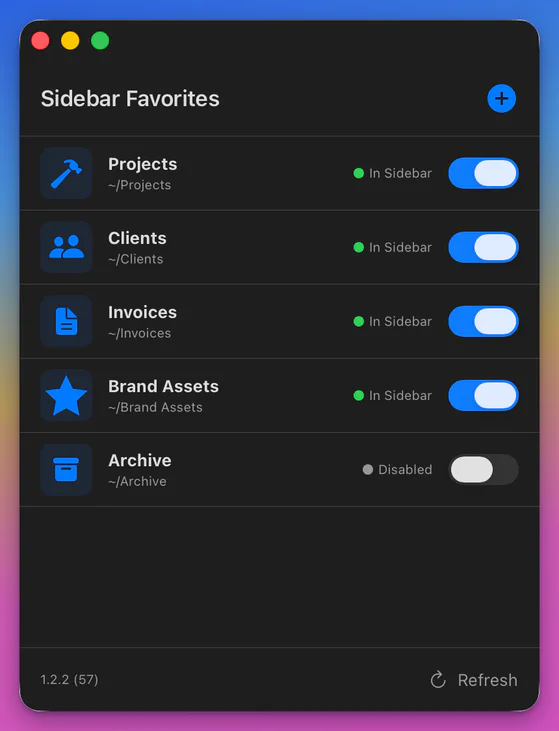
The manager window. 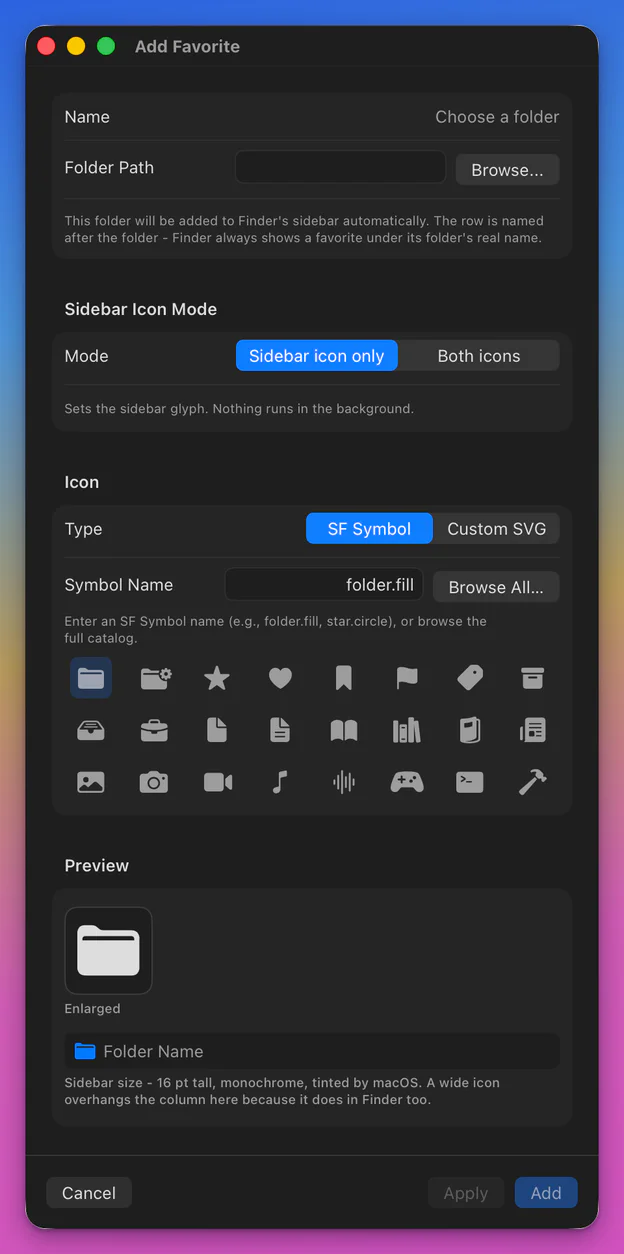
The Add Favorite window is its own window. The Preview shows the glyph enlarged and at true sidebar size. Pick the folder, choose the icon
Choose the folder, or type a path (~ works). Local folders, iCloud Drive, Google Drive and the other cloud folders, mounted disks and network shares all count. The name follows the folder.
Then the icon: an SF Symbol by name, a quick pick, Browse All… for about 8,300 more, or your own SVG. Try the name field below.
Type a name, or click a quick pick.
PreviewProjectsAdd
The app adds the row to Finder's sidebar and puts your icon on it.
If Finder still shows the old icon, a banner offers Restart Finder. The app never restarts Finder on its own.
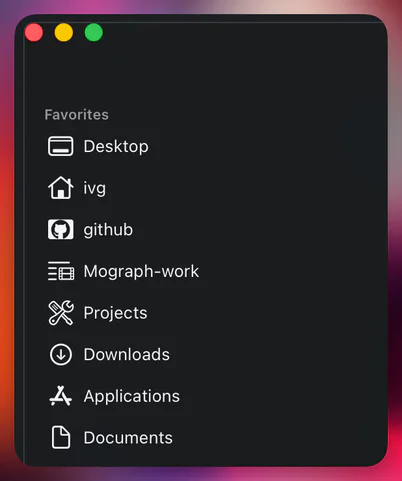
A real Finder sidebar, after Add.
Every symbol your Mac can draw, by name.
Browse All… in the app searches the whole SF Symbols catalogue on your Mac — about 8,300 symbols on macOS 13, more on each release — by name or by keyword, so “bin” finds trash. Type a name here to search the catalogue this page was built from.
9,184 names on the Mac that built this page. Showing 24 this page can draw.
Click a name to give the folder its symbol.
Any SVG. Nothing to prepare.
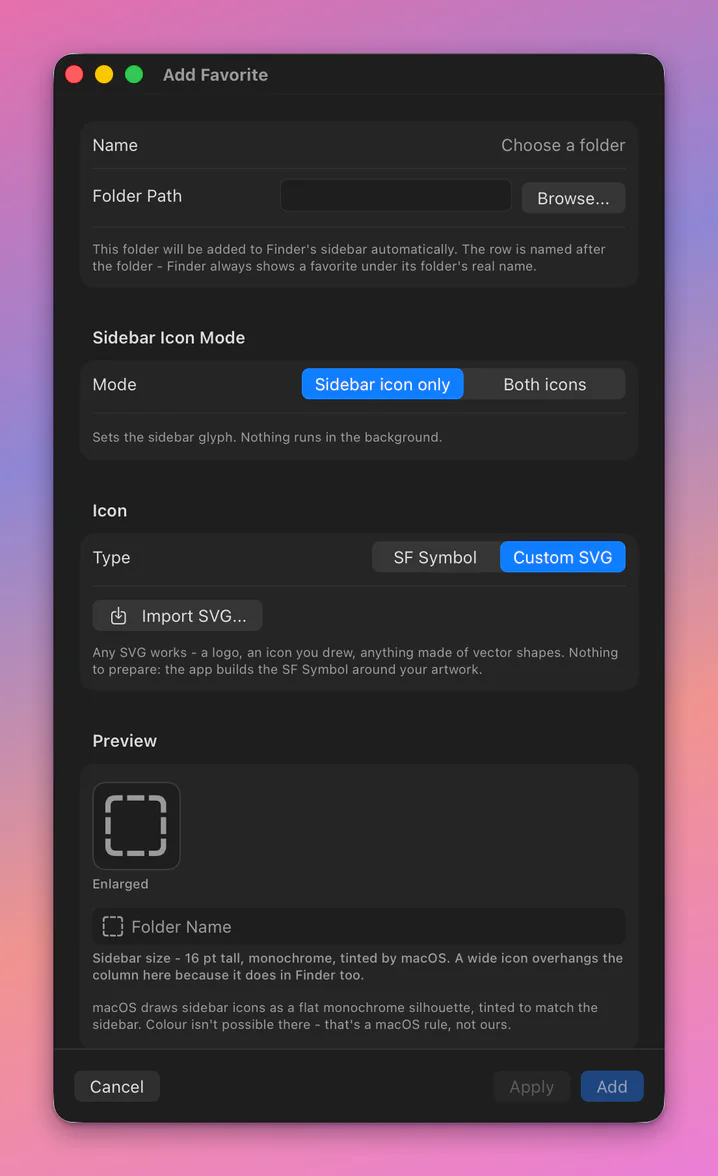
No SF Symbols template to export, no guide boxes to draw inside, no naming field to get right. The app flattens the file to one outline and builds the symbol around it. You see the exact silhouette, enlarged and at the real 16 pt, before anything ships. Try it with your own file.
Drop an SVG here, or paste one
This page reads files up to 512 KB. Nothing leaves your browser.
What the app would ship
SampleTune the size
Preview
Sidebar size: 16 pt, monochrome, tinted by macOS. A wide mark reads heavier than a sparse one at the same size — nudge it until it sits with the rest.
Apply saves, rebuilds the icon and restarts Finder in one click, with the sheet open, so you can tune it against the real sidebar.
Sidebar icons are always monochrome: Finder draws a flat silhouette tinted to match the sidebar. That is a macOS rule, not a limit of this app. Custom icons are compiled by the asset-catalog engine that ships with macOS, so no Xcode.
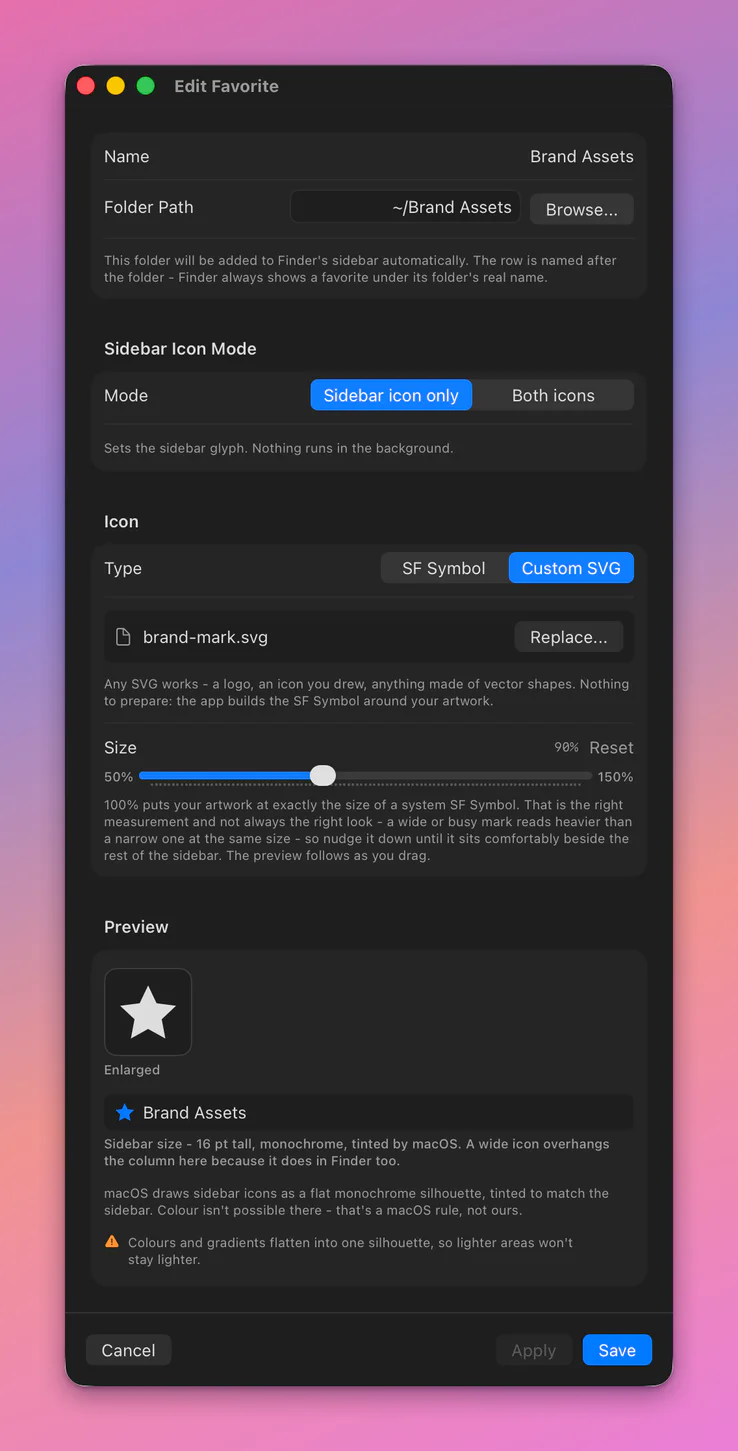
Local, cloud, disks, shares.
Folders in iCloud Drive and ~/Library/CloudStorage work exactly like local ones. A mounted disk or server can carry a custom icon too.
A local folder
Anything on your Mac. The app adds the row to Favorites with the glyph you picked. Rows you added yourself are left where they are; it only puts an icon on them.
Finder’s own entries (iCloud Drive, Computer, AirDrop, Network and the cloud-provider rows) cannot take a custom icon: macOS stores one and never draws it, so the app leaves them alone.
Folders with an icon of their own.
Some folders carry an icon you pasted into Get Info, usually so they are recognisable in the Dock. On macOS 26 that icon fights the sidebar: Finder redraws the row from the folder’s own icon whenever the folder changes, and your glyph disappears.
The folder keeps its icon everywhere (Desktop, Finder windows, the Dock) and the row keeps your glyph.
The cost: Both icons mode adds one small Finder Sync helper for this favorite, about 6 MB, with no window and nothing at login. Switch back and the helper is removed. Do nothing at all and the glyph goes whenever the folder changes, until you press Refresh.
Finder Sync helper SBF-DemoBoth registered · about 6 MB · no window · nothing at login
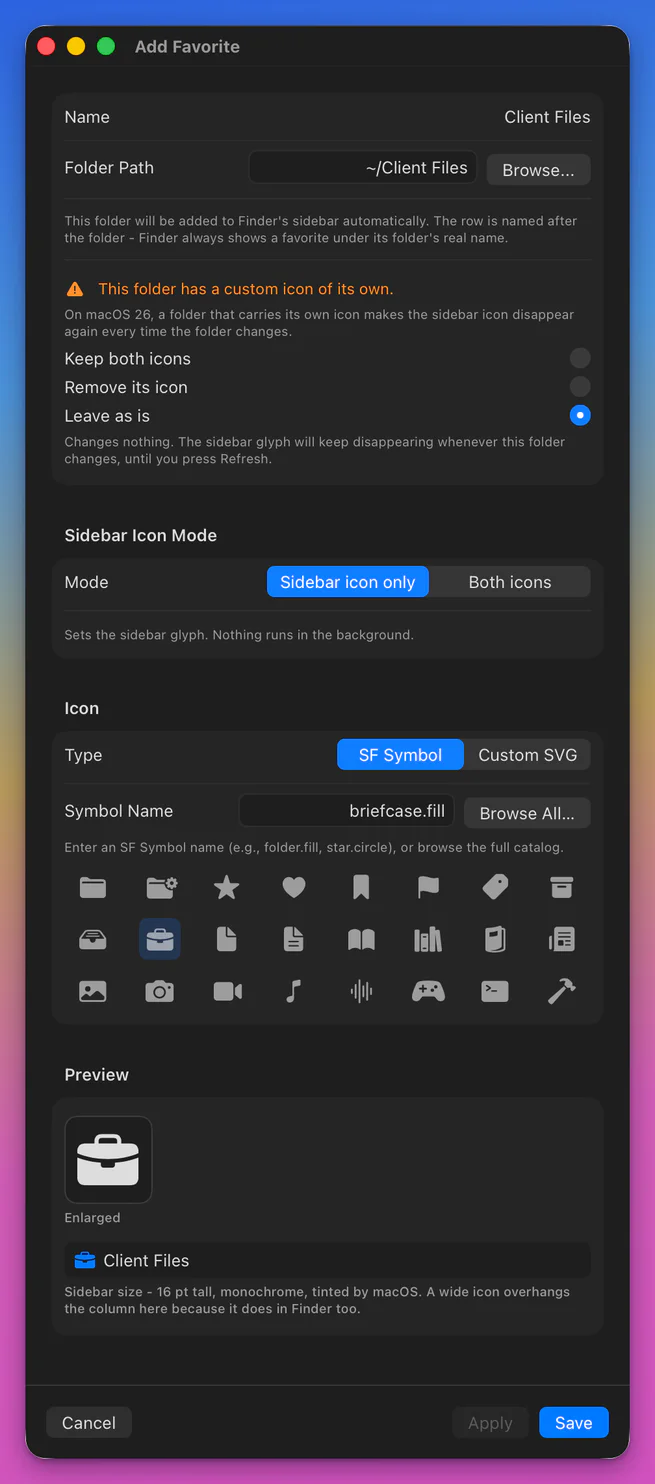
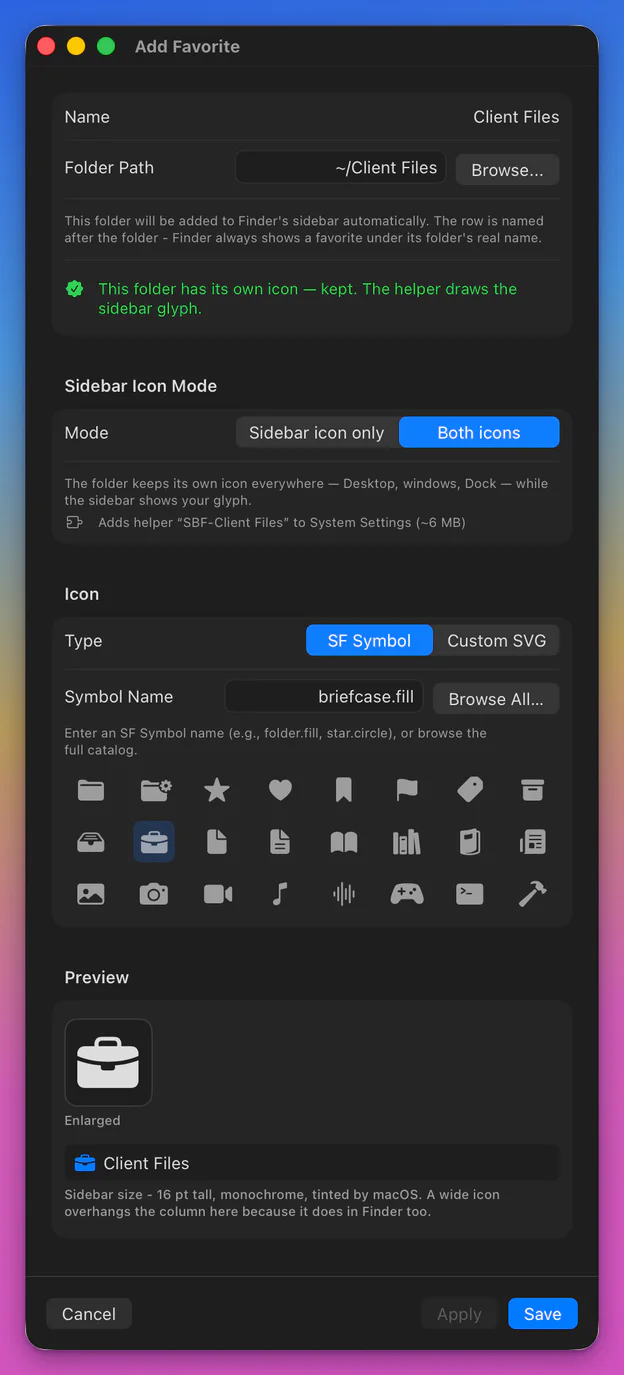
No extension. No daemon. No login item.
A normal favorite needs one private property on its Finder row and one small helper bundle that is never launched. This is everything the app writes. Choose a file.
~/Library/Application Support/SidebarFavorites/
Contents/MacOS/SidebarFavoritesIcons
#!/bin/sh
exit 0
17 bytes, and “no-op” is literal: the script does nothing and exits. It exists only so macOS agrees to register the bundle.
Nothing to enable. No extension to switch on, no permission to grant, for a normal favorite.
Nothing running. The helper bundle is never launched. There is no daemon, no login item, no launch agent.
Icons survive reboots and Finder restarts. The code sits on the Finder row; Launch Services resolves it every time.
Quit the app and the icons stay. You open it only to add, edit or remove a favorite.
Updates: one request per launch
The app asks GitHub once per launch whether a newer release exists. No background checking, no download, nothing installed behind your back. Offline, it says nothing.
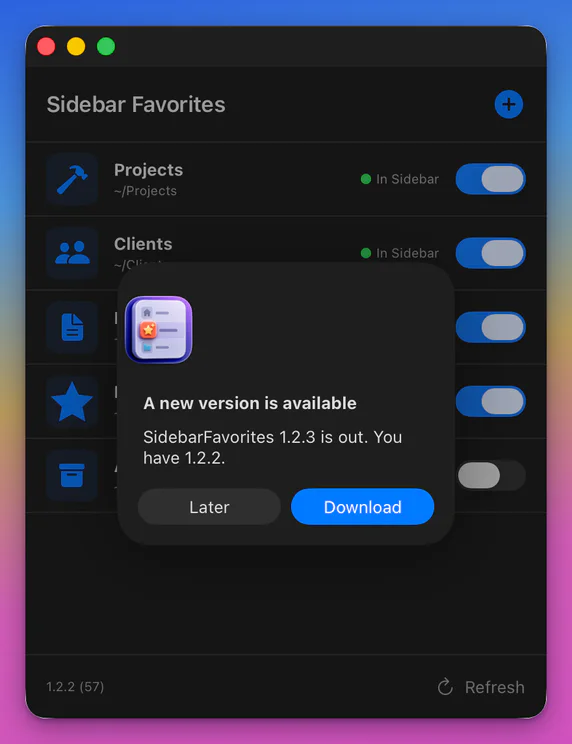
Install once. Forget it exists.
Developer ID signed, notarized and stapled, so it opens normally. Free, MIT licensed.
Download 1.2.2 (DMG, 14 MB)Requires macOS 13 or later. Apple silicon and Intel. All releases
Uninstall: Settings → Remove All Sidebar Icons, then trash the app.
brew tap ivg-design/tap brew trust ivg-design/tap brew install --cask sidebarfavorites
Homebrew asks you to trust a third-party tap once.